
This guide takes you step by step through the various stages involved in creating your HubSpot account.
A "portal", i.e. a private HubSpot space dedicated solely to your company, has already been created.
You can now create your HubSpot account within this portal.
To do so, please follow the steps below:
Step 1 : Access the HubSpot platform.
- Open your mailbox.
- You should have received an e-mail from HubSpot entitled "... has invited you to join them in HubSpot".

- Open the e-mail and click on Join HubSpot.
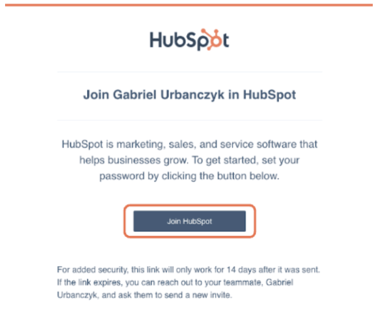
Step 2 : Fill in your information.
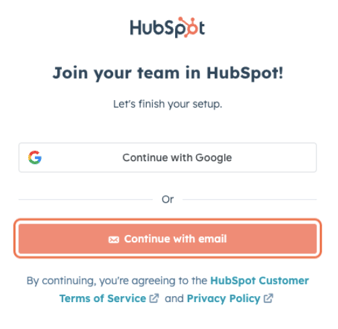
You are now on the HubSpot platform.
- Click on Continue with email.
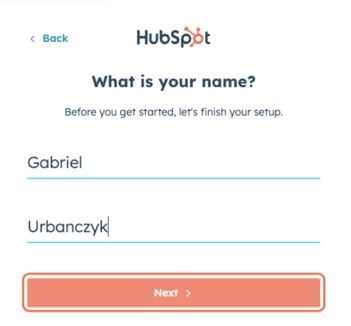
- Fill your first and last name.
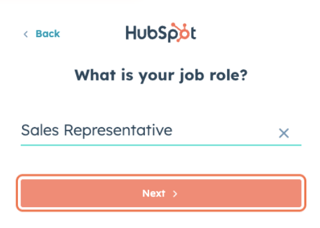
- Fill in your role.
Step 3 : Create your password.

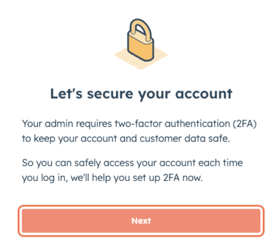
Step 4: Secure your account with dual authentication.
- This takes you to the configuration page for a dual authentication solution that will give you even greater security when accessing your account. Click on Next.
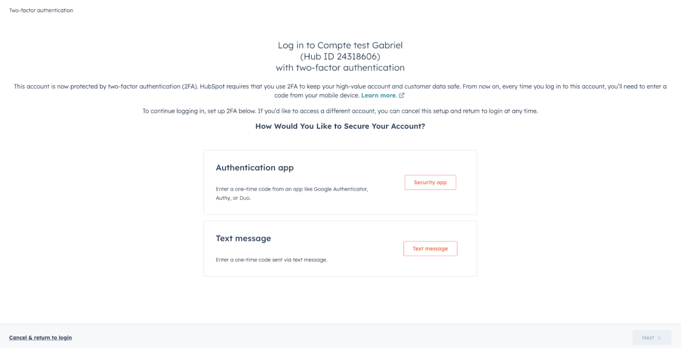
- You can choose the method of double authentication: via an authentication application (e.g. Microsoft Authenticator, Google Authenticator, Authy, etc.) or via a message on your cell phone.
Choose one of those two methods.
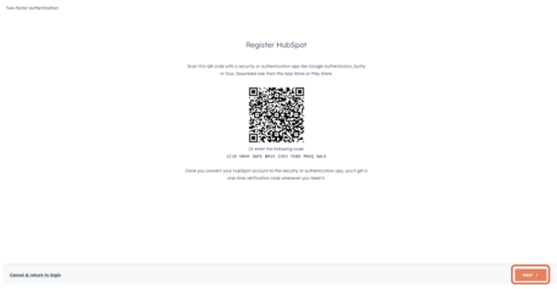
- Method via authentication application (if you have chosen the cell-text method, skip to the next point) :
- Open the authentication application on your cell phone and scan the QR code displayed on your computer screen, then click Next.
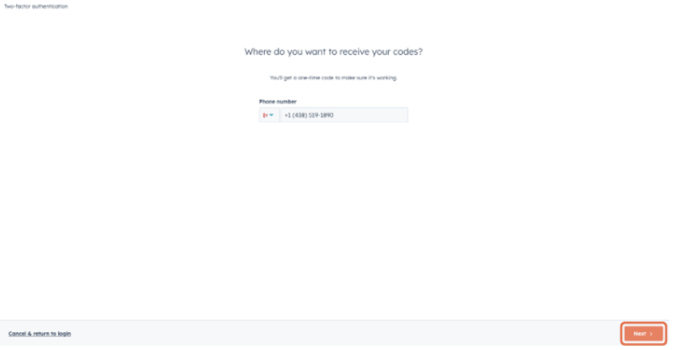
- Cellular text messaging method :
- Enter your cell phone number and click Next.
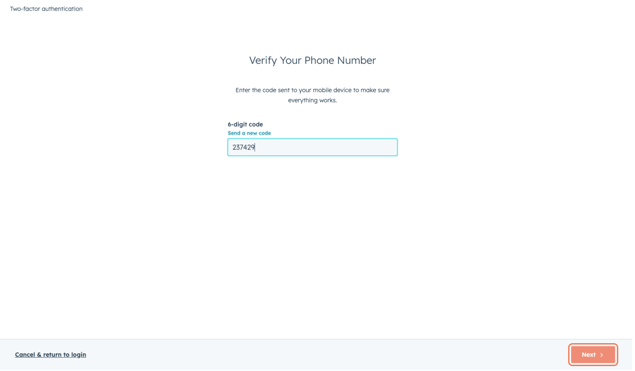
- Enter the 6-digit number displayed on your authentication application or on the text message you just received on your cell phone, then click Next.
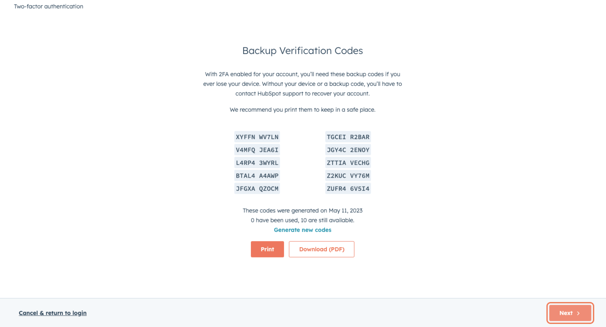
- Print or download the backup verification codes that will enable you to access your account in the event that you are no longer able to double authenticate, then click Next.
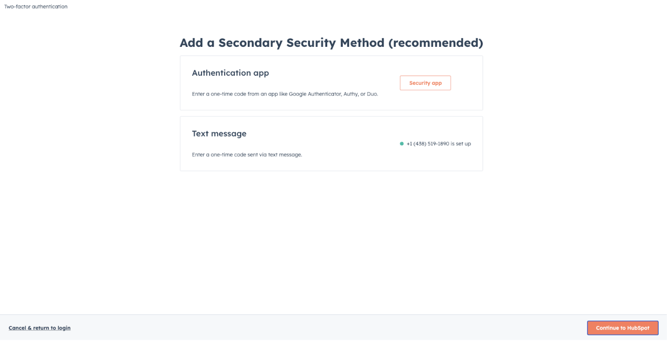
- You then have the option of adding a second double authentication method (the process remains the same as above).
If you do not wish to add another method, click on Continue to HubSpot.
Step 5 : Final information before accessing the solution
- Enter your level of knowledge of the HubSpot solution.

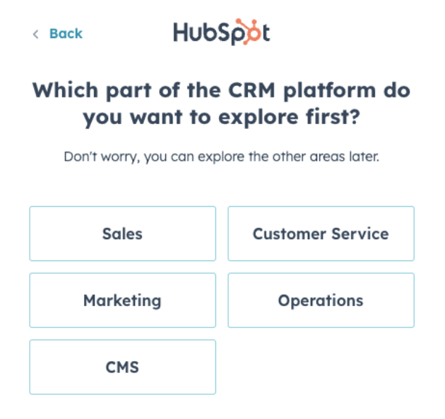
- Then select the module that most closely matches your job.
- HubSpot will provide you with a list of optional tasks to familiarize you with the solution.
We advise you to go straight to the next point, as we'll be looking at the basics of the HubSpot solution together later on.
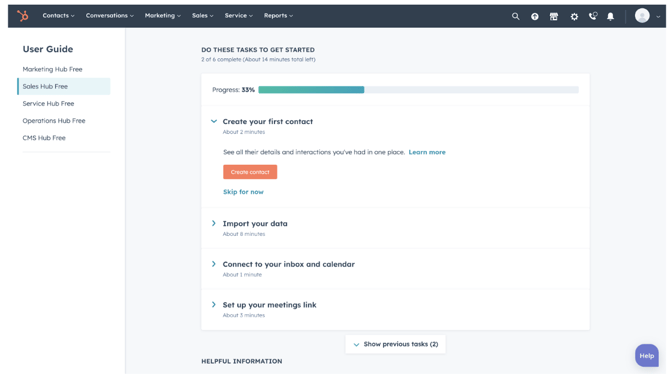
Congratulations, your account is officially created and you now have free access to the platform!
There are just 2 steps left to configure your account before your training workshop with us.